
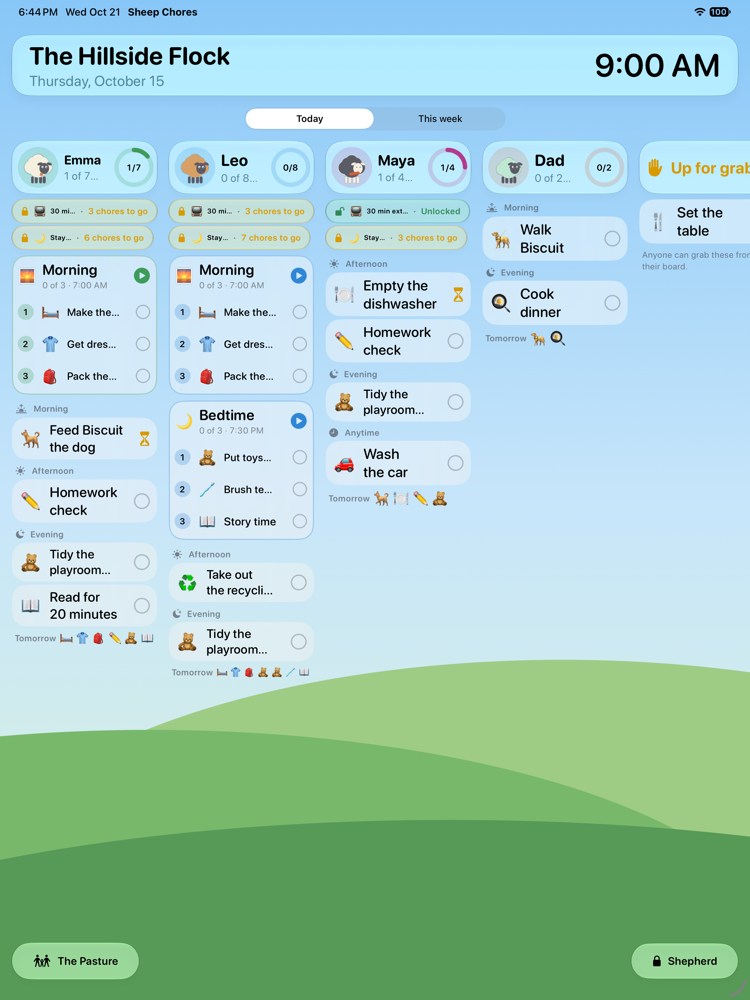
What it shows
- Today: one column per kid with their ring, any locked rewards and how many chores stand between them and it, each routine as a card listing its steps, then the day's chores by time of day. Finished chores show their status; tomorrow's peek at the bottom.
- Live clocks: routines on the clock and timed chores counting down line up in a Running now strip under the header, and running routines move to the top of their kid's column; a tap on any pill opens that clock (a kid with a secret PIN is asked for it first), and the chart scrolls down as well as sideways on a long day; a routine a kid is running shows its current step ticking on the card, and a timed goal they have started shows its countdown on the row, so every kid's routine can be followed from the chart at once.
- This week: the family calendar's week grid, kids by days, a tap away.
- Up for grabs: the chores anyone can claim, in their own column.
- The clock and the family name at the top, big enough to read from the table.
- Night: at the hour you choose it dims to a clock face and turns the screen's own brightness down to a glow (Settings › Battery), until a touch or the morning, when the sky comes back. The screen never sleeps while the chart is up.
A tap does something
A kid taps their chore on the chart and it opens — their own chore sheet, with the steps, the timer for a timed goal and the I did it! button. A tap on a routine's card, or on any of its steps, plays it right over the chart, step by step with the ring and the voice. If the kid has a PIN, the chart asks for it first, so a shared screen stays theirs. When they are done, the chart is back, and a routine with every step done folds to one line with a check at the foot of their column.
The Shepherd standing by
A parent walking past can check a finished chore right there: open it, tap A Shepherd is here, enter the PIN, and approve it, send it back for another go, or add a bonus. A mistaken tap is just as easy to undo: Put it back to to-do returns the chore, and Put the whole routine back resets every step. Nothing needs the parent's phone, though the phone hears about it anyway.
Setting it up
- On the family iPad, finish the setup wizard and choose Family iPad in the kitchen as the device's role.
- Open the Shepherd area with your PIN, then Settings › This device › Fridge chart, and turn it on. Pick the hours it should dim to a clock.
- Tap Fridge chart on the Pasture. The chart stays up; The Pasture at the bottom brings the sheep back whenever a kid wants their full board.
- Optionally keep the iPad plugged in on a stand and enable Guided Access in iOS Settings if small hands tend to wander.
And the paper one
Some fridges still want paper. The calendar prints the week as a one-page sheet — kids down the side, days across the top — from Calendar › Print the week.
Questions
Does the fridge chart work on an iPhone?
It does, scaled to the phone, but it is designed for the family iPad propped on a stand in the kitchen. On a phone the kid's own board is usually the better view.
Can kids get into the parent area from the chart?
No. The Shepherd button asks for the PIN every time, and the family iPad never offers Face ID or a Forgot-PIN path.
Does it drain the battery?
The chart is a still screen with a clock; nothing on it moves unless a routine is on the clock. At night it dims to a clock face on a dark background and turns the screen's brightness down, and nothing is drawn under the clock. Keep the iPad plugged in on its stand and it will run all day; Settings › Battery holds the knobs.
Will it show grown-ups' chores too?
Yes. A grown-up on the board gets a column like everyone else, without wool or money, so the kids see everyone pitching in.