
What a routine is
A routine has a name, days of the week, a start time and a default number of seconds per step. Its steps are chores — real ones, assigned to the kids who run the routine, each with its own picture, checklist and reward. On the routine's days a card with a Start button appears on each runner's board, listing every step. The chores inside a routine repeat on the routine's days in its time of day, so a four-step routine shows all four steps every day it runs.
The player
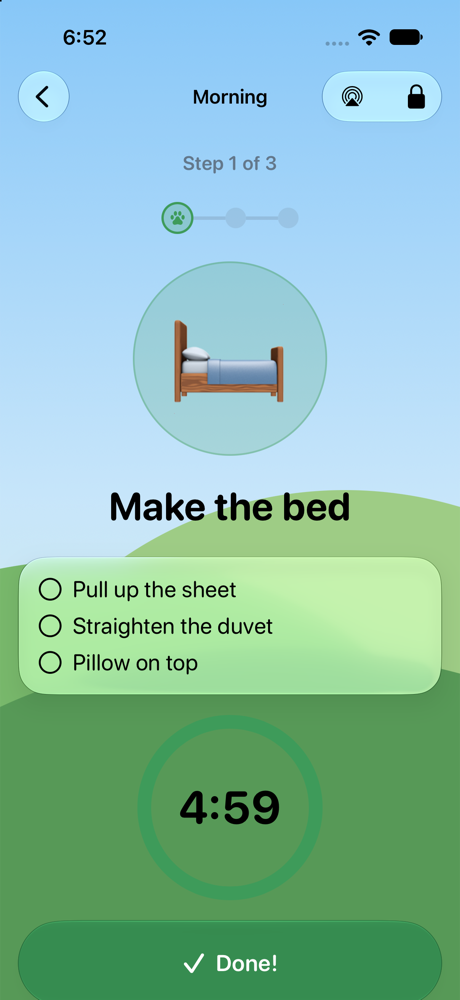
- One step at a time: the chore big, its checklist, a countdown ring, Done and Skip for now.
- Spoken cues: each step's name and minutes as it starts, then halfway, five minutes on a long step, one minute, thirty seconds and time's up. An AirPlay button sends the voice to a HomePod mini or any speaker in the kids' room, and it stays there for as long as any clock runs.
- Done folds away: a routine with every step done folds to one line with a check on the board and the fridge chart, so what is still to do stands out; a tap opens it again.
- Read aloud for pre-readers speaks every step as it appears, and they always have the speaker button on a step; Settings › The voice can turn that button on for everyone.
- Live Activity: the current step and its timer on the Lock Screen and in the Dynamic Island.
- Siri: “How much time is left in Sheep Chores?” on the device that is playing.
- Time taken: Done records how long the step really took beside the time it was given; the done screen adds the session up, and parents see it in Approvals, the history export and the time report card under Reports.
- One congratulations screen when the last step is done: confetti, the kid's sheep hopping, the time the routine took, and the way back to the board.
- Skipping a step keeps it on the board; the routine counts as done only when every step is. The screen stays awake while a routine plays.
- Two at once: each kid's routine runs on its own clock, and a routine keeps running when the kid goes back to the Pasture. The board and the fridge chart show the step that is on the clock, ticking, until they return or finish. While both run, the voice says whose minute it is — "Kate, you're halfway there." — and the two never talk over each other.
Setting one up
- Open Routines and tap +. Name it (Morning), pick its days and start time, and a default time per step.
- Under Who runs it, tap the kids. A line spells out whose board gets the Start button and when.
- Add steps three ways: New chore makes one from scratch, Add existing chores picks from your list, Add from the chore library browses the catalogue. Arrows beside each step set the order; each step can have its own time.
- Save. The Start button appears on the runners' boards on the routine's days, in the routine's time of day.
- Want the same routine for another child at a different time? Swipe the routine right, or open it and tap Duplicate: a second routine appears with its own copies of every step for the kids you pick.
On the fridge chart and the calendar
The fridge chart shows each routine as its own card with its steps; a tap on the card, or on any step, plays it right over the chart, and routines on the clock line up in a Running now strip under the header. Inside the player an Also running row lists every other clock on the iPad — a sibling's routine, a timed chore — so kids sharing one iPad switch to their own timer with a tap. The family calendar shows the steps on the routine's days. A parent can Reset today on a routine to put every runner's steps back to to-do, or put a single step back from the kid's screen with the PIN.
Deleting a routine
Its steps were chores assigned to the kids who ran it, so deleting the routine takes them off the boards too — archived, not destroyed, so finished ones stay in history and Chores › Archived can bring one back. If you only wanted to drop the order they played in, choose Delete, keep the steps as chores and they stay as regular chores. To take one kid off a routine without deleting it, tap their name under Who runs it.
Why timers help. Children under about eight do not feel ten minutes passing. A ring that visibly shrinks, a voice that says “one minute,” and a Done button they press themselves turn “hurry up” into something they can see and own.
Questions
Why does the Start button not show today?
The routine does not run today, or that kid is not among the ones who run it. Check the days and Who runs it at the top of the routine.
Can two kids run the same routine at different times?
Yes. Duplicate the routine for the second kid; the copy has its own steps, time and days and can be renamed.
Does a routine pay wool?
Each step is a chore and pays whatever that chore pays — wool, money, both or nothing. Finishing the last step celebrates; the timer running out never costs anything.
Can the voice come from a speaker in the kids' room?
Yes. Tap the AirPlay button at the top of the player and pick a HomePod mini or any AirPlay speaker. The voice stays on that speaker for as long as any clock is running, timed chores included. Settings › The voice turns the spoken cues off entirely.